Dino D-Day Common Problems
This page is here to aid you with common issues you may experience while playing Dino D-Day both in general as well as on the Dino Town server. Use the index to find help for your problem.
- Maps not downloading/missing maps errors.
- Game crash on joining games on high-end CPUs.
- Very dark maps on Intel CPUs.
Maps Not Downloading/Missing Maps Errors
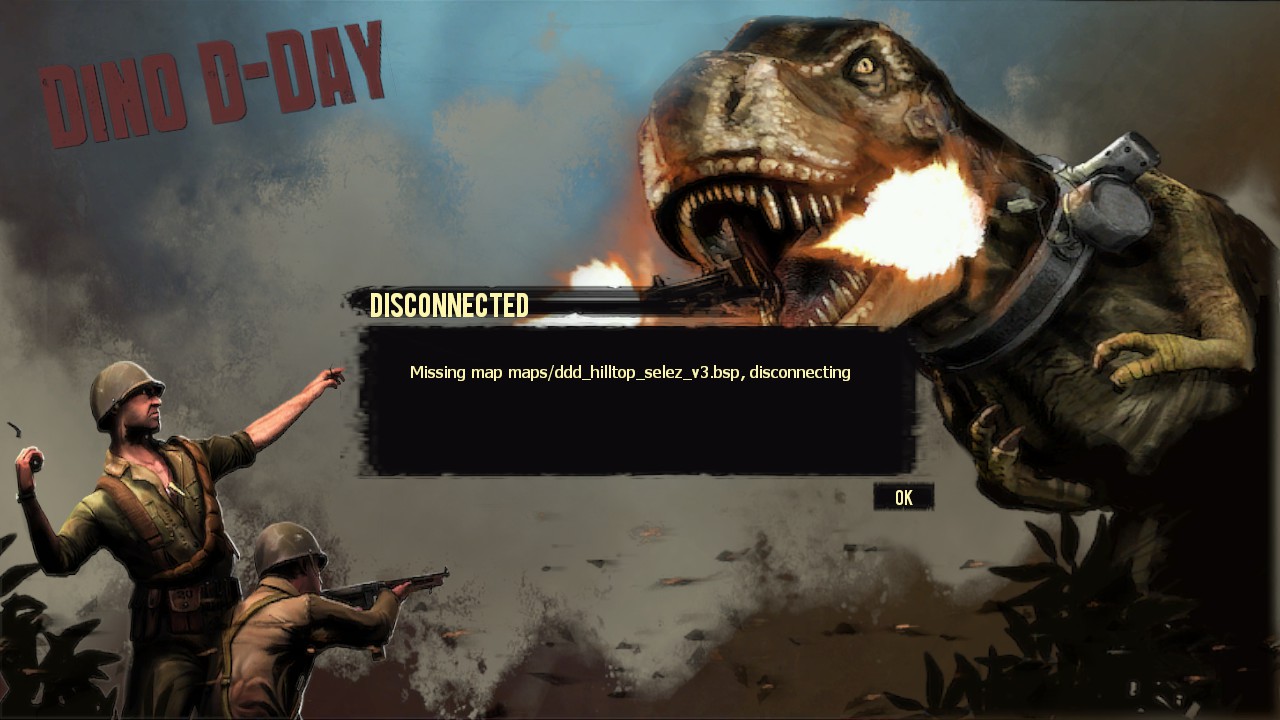
The Dino Town server utilizes a number of community-made maps that your game needs to download to play. Otherwise, you will get disconnected with an error stating you are missing a map.
To fix automatic downloading of maps, you'll need to change a console variable on your game. To do this, you'll first need to enable the developer console. From the main menu:
- Click "options" menu item.
- Click "keyboard/mouse" menu item.
- Change "Allow Developer Console" to enabled.
- Back out of the menu back to the title screen.
Once the developer console is enabled, hit the tilde key (key to the left of the 1 button). The console will appear. In the console, type cl_downloadfilter all and hit enter. Back out of the console using the tilde key again and you should be able to join the server.
Still Not Working/Manual Map Downloads
If the steps above didn't fix it, please notify RomanPort on the Discord. In the meantime, you can download the maps manually to join the server.
Maps are hosted on the Dino Town assets page here. On that page, locate the map that you are missing with the .bsp file extension. Then, head into your Dino D-Day installation folder. To do this from Steam, right click Dino D-Day on the sidebar and choose "Properties...". Then, under the "Installed Files" tab choose "Browse...".
Once in the Dino D-Day installation folder, drop the downloaded map(s) into the dinodday/maps/ folder. You should now be able to join the game.
Game Crash on Joining Games on High-End CPUs
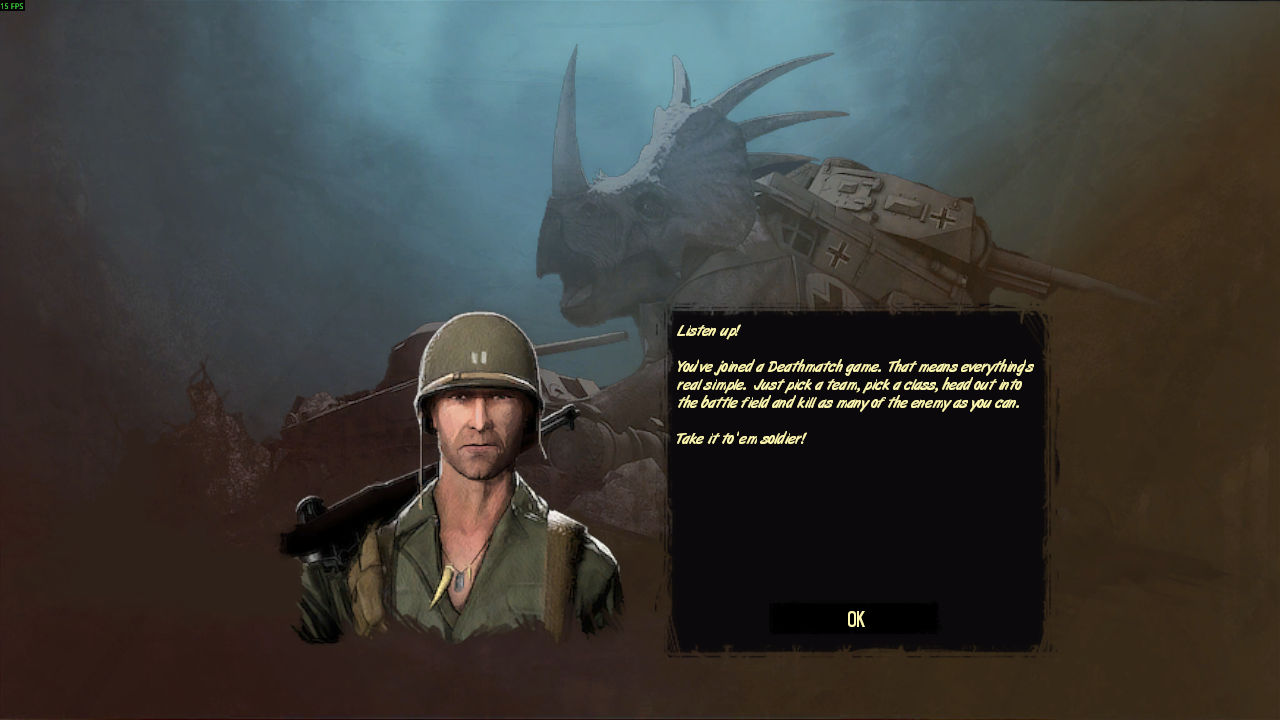
There is a known bug on CPUs with more than 28 threads where the game will crash upon joining a match, creating a match, or starting the dedicated server. Other than the crash, you may see the screen above with malformed text immediately before the game crash. To fix this, you'll need to patch a DLL in the game's installation folder. If your CPU has fewer than 28 cores, this will not help you. Make sure your game is closed before the following steps.
Modifying game DLLs inherently carries the risk of VAC bans. While many people in the community, including the server owner, run the following patch everyday without problem, we cannot be held responsible for VAC issues originating from these steps. Follow at your own risk.
Easy Fix
The easiest way to solve the problem is to download the patched DLL and drop it into your game files. To do this, open up your installation folder. To do this from Steam, right click Dino D-Day on the sidebar and choose "Properties...". Then, under the "Installed Files" tab choose "Browse...".
From the installation folder, go into the bin folder (NOT Dino D-Day/bin!). Download the patched DLL file from here and replace tier0.dll with it. Your game should now be patched and launch correctly.
Patching Manually
Downloading DLLs from people on the internet is generally a bad idea. If you prefer to patch the file yourself, it is relatively easy to do so. To do this, open up your installation folder. To do this from Steam, right click Dino D-Day on the sidebar and choose "Properties...". Then, under the "Installed Files" tab choose "Browse...".
From there, navigate to the bin folder and open tier0.dll with your favorite hex editor such as hexed.it, an online hex editor that runs in your browser. Optionally, you may want to verify that this file matches the original SHA-256 hash below:
Once open in a hex editor, navigate to offset 0x2193. Replace C3, CC, CC (etc) with the following bytes: 36 C6 40 05 18 36 C6 40 06 18 C3 90 90. Then, save over the original file.
Your game should now be patched and run correctly.
Technical Details
At game initialization, the game creates a bunch of IO threads. It creates as many IO threads as you have logical processors/threads. Presumably at some point while loading a level, it utilizes all of these threads which is blowing past some buffer somewhere.
The solution is to patch the GetCPUInformation function in tier0.dll to make it report that there are only 24 logical CPU cores on the system. At the very end of that function, there is enough padding between it and the next function that a few instructions can be inserted. The patch replaces the ret opcode to return out of the function with two mov byte instructions that replace m_nLogicalProcessors and m_nPhysicalProcessors in the returned CPU information struct (details here) at eax+0x5 and eax+0x6 with 0x18. Then the function returns. This effectively erases whatever number of cores it retrieved with 0x18 (24 in decimal) cores.
Very Dark Maps on Intel CPUs
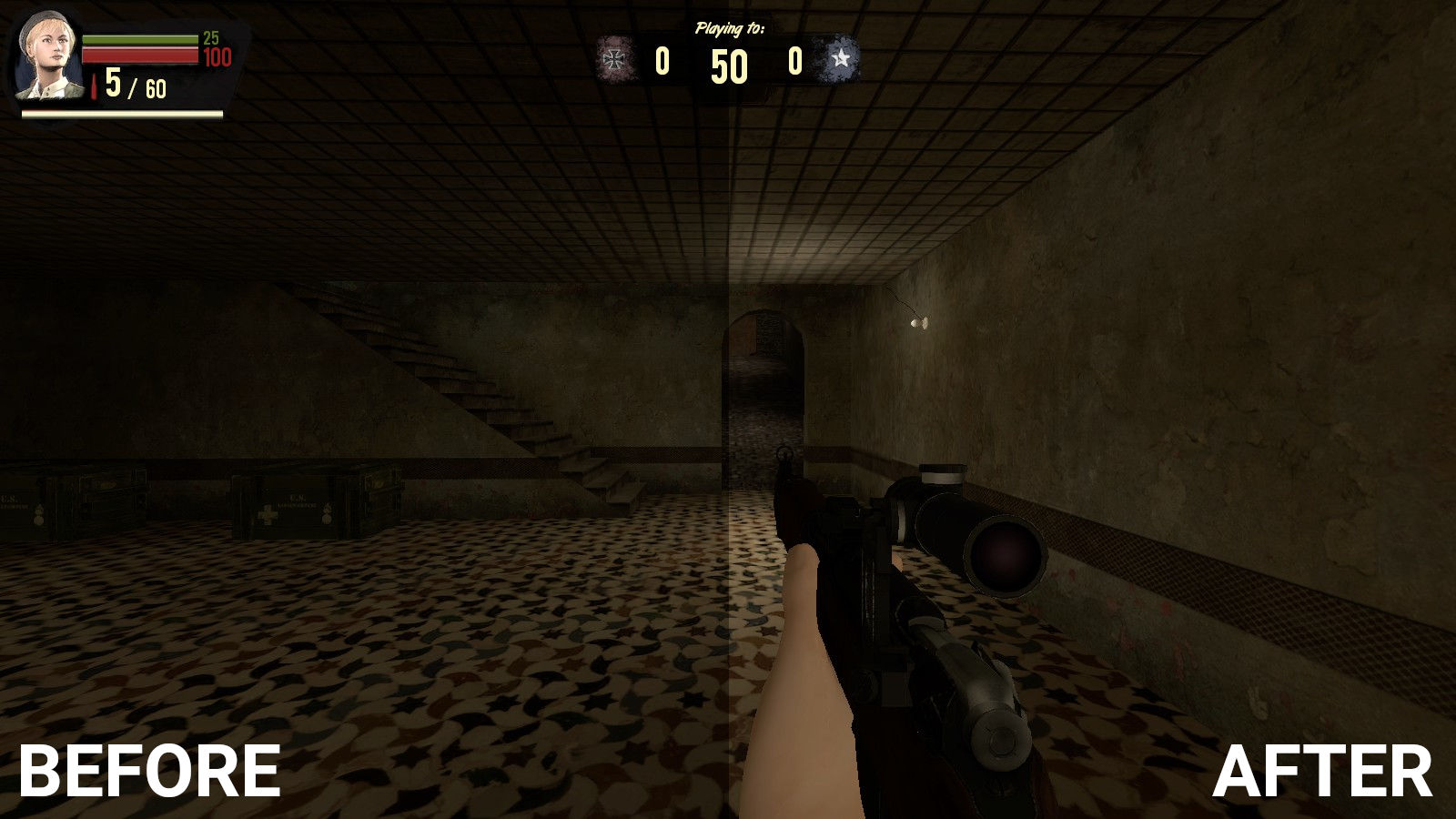
There is a bug on Intel CPUs with integrated graphics that causes maps to appear very dark. The solution for this was discovered by copelow on the Steam forums. To fix this, you need to change a console variable in the game. Because it is not persistent, you'll need to manually add the change to your game files. Make sure your game is closed before the following steps.
First, open your Dino D-Day installation folder. To do this from Steam, right click Dino D-Day on the sidebar and choose "Properties...". Then, under the "Installed Files" tab choose "Browse...".
From there, navigate to the dinodday/cfg folder. Ensure that file extensions are on. You can do this on Windows 10 by choosing the "view" tab on the file browser and making sure "file name extensions" are checked. Now, create a new text document and rename it to autoexec.cfg. If this file already exists, skip this step. Ensure it is not named autoexec.cfg.txt as this will not work.
Now, open the newly created autoexec.cfg file in notepad or your preferred plain text editor of choice. Then, add mat_tonemapping_occlusion_use_stencil 1 to an empty line on the file. Save the file and exit your text editor.
Start the game and maps should be significantly brighter.